Isolated Dev & Test Environments
Why are Isolated Environments Important?
When making changes to a data lake, teams must test those changes against real production data to ensure reliable results. This requires isolated environments that provide access to production data without impacting it, or the consumers who depend on it.
Running pipelines, transformation jobs, or model updates directly in production without proper testing introduces significant risk. Sooner or later, data issues can propagate into dashboards, ML models, and downstream systems, leading to costly errors and loss of trust.
The most common way to avoid changing production directly is to create separate development and testing environments. In practice, this usually means copying large volumes of data into dedicated dev environments for experimentation and validation.
However, without lakeFS, creating and maintaining these environments is time-consuming and expensive. Large datasets must be duplicated, increasing storage costs. Teams often end up sharing limited dev environments, which creates coordination overhead and slows development. And because these environments rely on data copies rather than true isolation, they still don’t guarantee hermetic separation from production.
How does lakeFS Help with Dev/Test Environments?
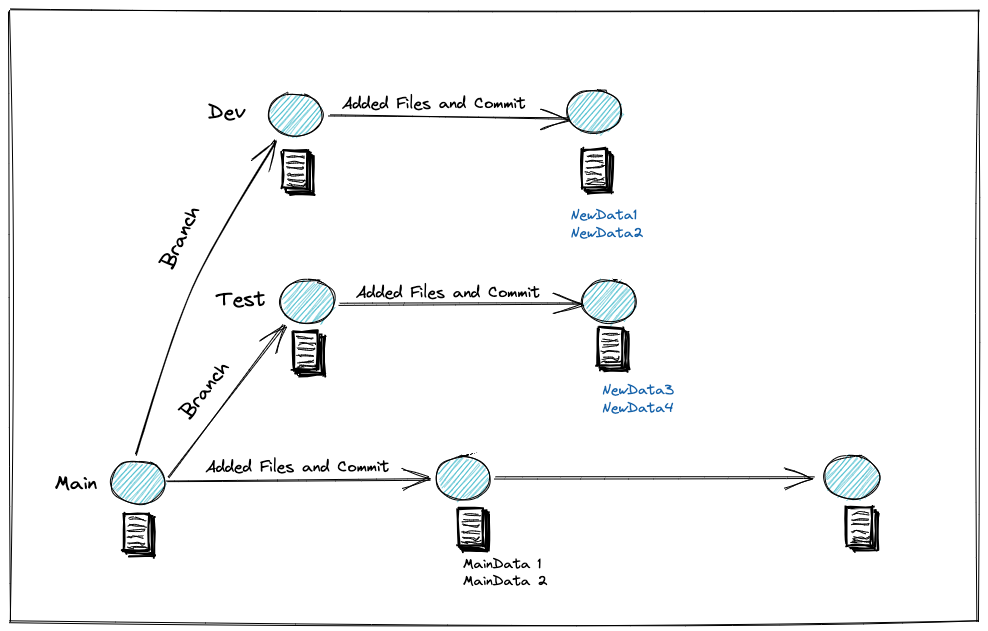
lakeFS makes it fast and cost-effective to create truly isolated dev and test environments for ETL jobs, transformations, and ML workflows. Instead of copying large volumes of data, lakeFS uses zero-copy branching to create new environments instantly - without duplicating objects.
In a lakeFS repository, all data lives on a branch. You can think of each branch as an independent environment. Branches are fully isolated: changes made on one branch do not affect other branches unless you explicitly merge them. This allows teams to experiment, validate changes, and iterate safely — without impacting production or other developers.
Because lakeFS creates branches using metadata pointers rather than physical copies, unchanged objects are shared across branches. Only new or modified data consumes additional storage. This eliminates the high costs and operational burden of maintaining multiple copied environments.
When changes are validated and ready to be promoted, you can use a merge operation to apply them to another branch (for example, from a dev branch into production). This makes the promotion process controlled, explicit, and versioned.
Using Branches as Development and Testing Environments
The key difference when using lakeFS for isolated data environments is that you can create them immediately before testing a change. And once new data is merged into production, you can delete the branch - effectively deleting the old environment.
This is different from creating a long-living test environment used as a staging area to test all the updates. With lakeFS, we create a new branch for each change to production that we want to make. One benefit of this is the ability to test multiple changes at one time.
Try it out: Creating Dev/Test Environments with lakeFS
lakeFS supports UI, CLI (lakectl command-line utility) and several clients for the API to run the Git-like operations. Let us explore how to create dev/test environments using each of these options below.
There are two ways that you can try out lakeFS:
- lakeFS Cloud - fully managed lakeFS with a 30-day free trial
- Local Docker-based quickstart and samples
- Self-hosted lakeFS Enterprise quickstart
Example: Using lakeFS Cloud
In this tutorial, we will use a lakeFS playground environment to create dev/test data environments for ETL testing. This allows you to spin up a lakeFS instance in a click, create different data environments by simply branching out of your data repository and develop & test data pipelines in these isolated branches.
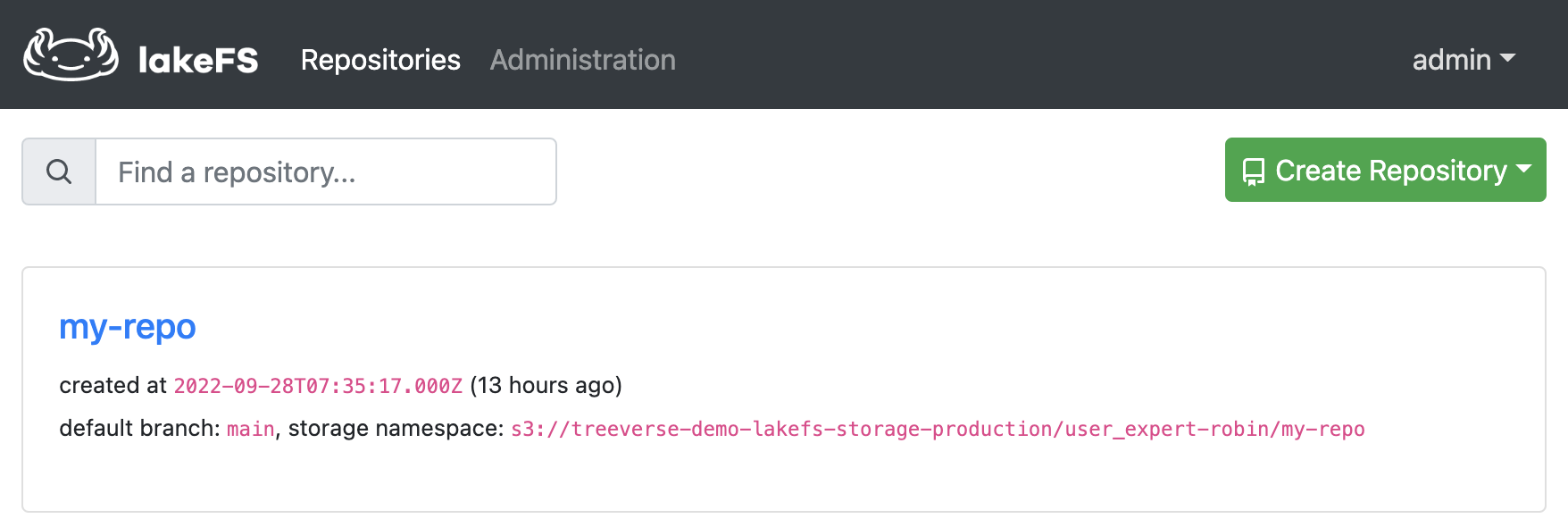
First, let us spin up a playground instance. Once you have a live environment, login to your instance with access and secret keys. Then, you can work with the sample data repository my-repo that is created for you.
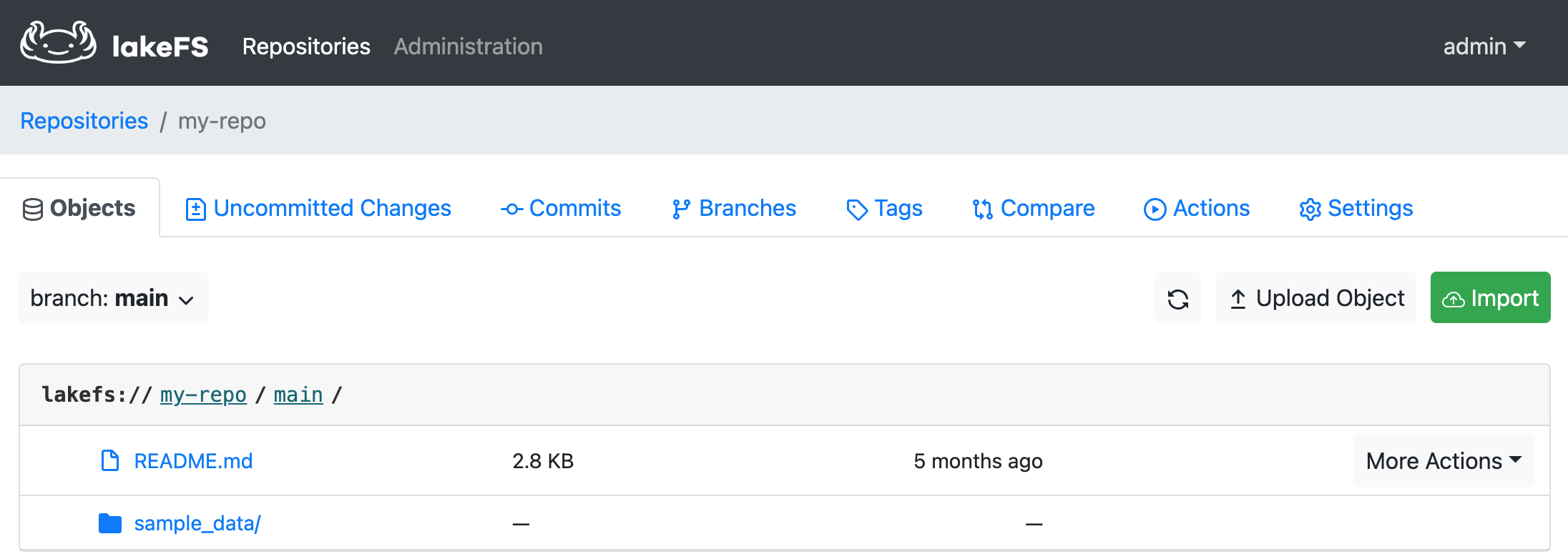
Click on my-repo and notice that by default, the repository has a main branch created and sample_data preloaded to work with.
You can create a new branch (say, test-env) by going to the Branches tab and clicking Create Branch. Once it is successful, you will see two branches under the repository: main and test-env.
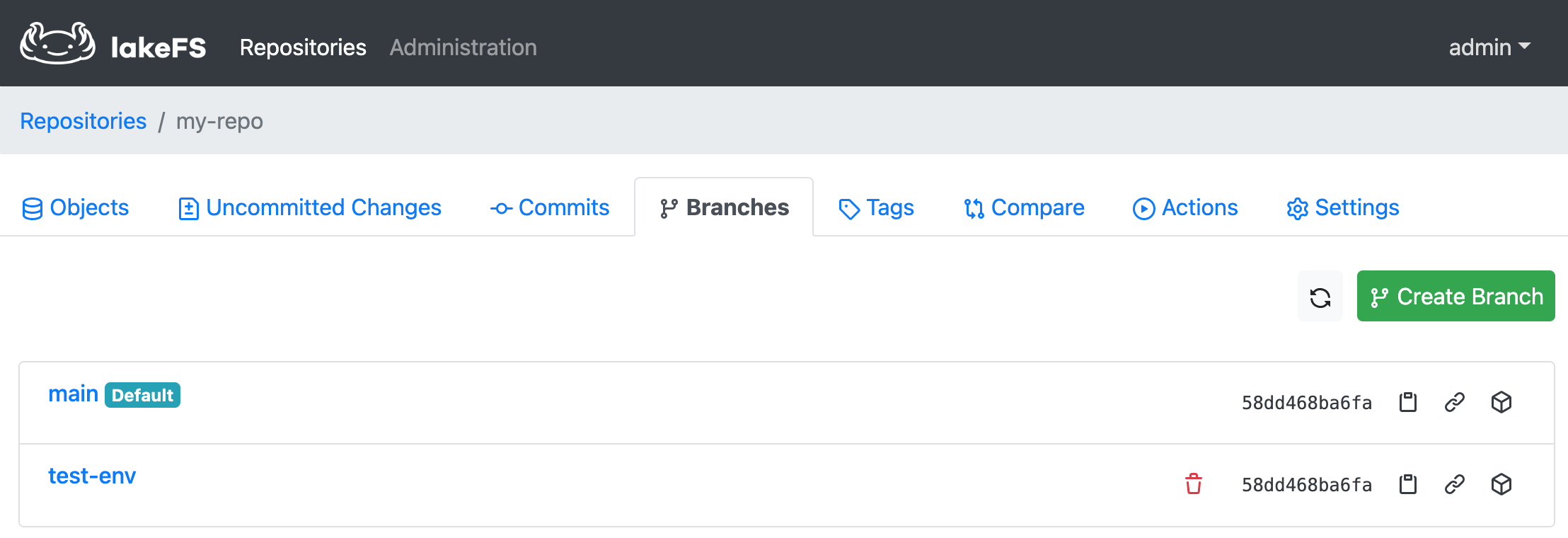
Now you can add, modify or delete objects under the test-env branch without affecting the data in the main branch.
Trying out lakeFS with Docker and Jupyter Notebooks
This use case shows how to create dev/test data environments for ETL testing using lakeFS branches. The following tutorial provides a lakeFS environment, a Jupyter notebook, and Python SDK API to demonstrate integration of lakeFS with Spark. You can run this tutorial on your local machine.
Follow the tutorial video below to get started with the playground and Jupyter notebook, or follow the instructions on this page.
Prerequisites
Before getting started, you will need Docker installed on your machine.
Running lakeFS and Jupyter Notebooks
Follow along the steps below to create dev/test environment with lakeFS.
-
Start by cloning the lakeFS samples Git repository:
-
Run following commands to download and run Docker container which includes Python, Spark, Jupyter Notebook, JDK, Hadoop binaries, lakeFS Python SDK and Airflow (Docker image size is around 4.5GB):
-
Open the local Jupyter Notebook and go to the
spark-demo.ipynbnotebook.
Configuring lakeFS Python Client
Setup lakeFS access credentials for the lakeFS instance running. The defaults for these that the samples repository Docker Compose uses are shown here:
lakefs_access_key = 'AKIAIOSFODNN7EXAMPLE'
lakefs_secret_key = 'wJalrXUtnFEMI/K7MDENG/bPxRfiCYEXAMPLEKEY'
lakefs_endpoint = 'http://lakefs:8000'
Next, setup the storage namespace to a location in the bucket you have configured. The storage namespace is a location in the underlying storage where data for this repository will be stored.
You can use lakeFS through the UI, API or lakectl command-line. For this use-case, we use python lakefs to run lakeFS core operations.
import lakefs
from lakefs import Client

# lakeFS credentials and endpoint
client = Client(
    host=lakefs_endpoint,
    username=lakefs_access_key,
    password=lakefs_secret_key
)
lakeFS can be configured to work with Spark in two ways:
- Access lakeFS using the S3-compatible API
- Access lakeFS using the lakeFS-specific Hadoop FileSystem
Upload the Sample Data to Main Branch
To upload an object to the my-repo, use the following command.
import os
import lakefs

with open('/data/lakefs_test.csv', 'rb') as f:
    lakefs.repository("my-repo", client=client).branch("main").object(filenName).upload(data=f.read())
Once uploaded, commit the changes to the main branch and attach some metadata to the commit as well.
lakefs.repository("my-repo", client=client).branch("main").commit(message="Added my first object!", metadata={'using': 'python'})
In this example, we use lakeFS S3A gateway to read data from the storage bucket.
Create a Test Branch
Let us start by creating a new branch test-env on the example repository my-repo.
Now we can use Spark to write the csv file from main branch as a Parquet file to the test-env of our lakeFS repository. Suppose we accidentally write the dataframe back to "test-env" branch again, this time in append mode.
df.write.mode('overwrite').parquet('s3a://my-repo/test-env/')
df.write.mode('append').parquet('s3a://my-repo/test-env/')
What happens if we re-read in the data on both branches and perform a count on the resulting DataFrames?
There will be twice as many rows in test-env branch. That is, we accidentally duplicated our data! Oh no!
Data duplication introduce errors into our data analytics, BI and machine learning efforts; hence we would like to avoid duplicating our data.
On the main branch however, there is still just the original data - untouched by our Spark code. This shows the utility of branch-based isolated environments with lakeFS.
You can safely continue working with the data from main which is unharmed due to lakeFS isolation capabilities.